How to record a Zoom call on Mac without a bot
I make Karl, so read this knowing that. Most meeting note apps record Zoom by sending a bot into the call: a participant called Notetaker or Fireflies appears in the list, and everyone sees it. A Mac doesn't need one. macOS can hand an app the audio the Mac is playing, which is the other people on your call. Karl records that, and your microphone, on your Mac, and transcribes both on the device. Nothing joins the meeting and nothing is uploaded.
The steps
- Install Karl on your Mac. It needs macOS 26. The app is free.
- Open Karl and press Record. Before or after joining, it makes no difference. The first time, macOS asks whether Karl may record the Mac's audio. Allow it; it asks once.
- Join the Zoom call as usual, in the Zoom app or in a browser. Karl hears the other people through the Mac's audio and hears you through the microphone. Headphones are fine: the sound never has to come out of the speakers.
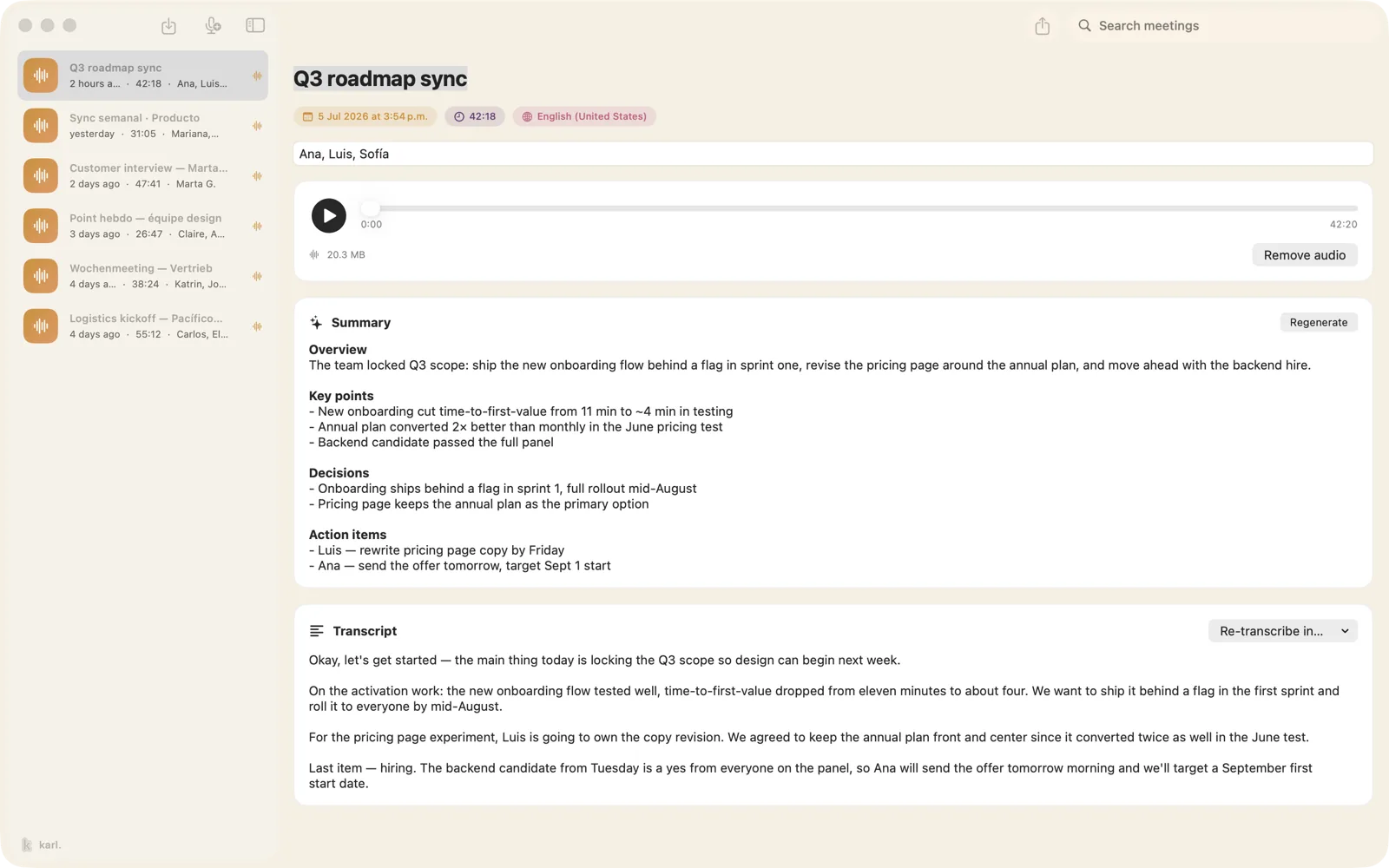
- Press Stop when the call ends. The transcript streams in while you talk, so you can watch it or ignore it. When you stop, the summary writes itself on the device.
With Karl Pro you can skip step 2. When Zoom launches, Karl sends a notification offering to record, and another one when the call sounds over. Karl only sees that Zoom opened and holds the microphone, never the call itself.
Does Zoom know?
No. Zoom shows its recording notice only when you use Zoom's own recording. Karl asks macOS for the audio and never touches Zoom, so nothing appears in the call.
That also means telling people is on you. In many places you must say you're recording, and in some you need consent. Say it at the start. Karl doesn't announce anything for you.
Same for Teams, Meet and the rest
Karl captures whatever the Mac plays, so it doesn't matter which app the call is in. Microsoft Teams, Google Meet in a browser tab, Webex, FaceTime, a Slack huddle, a WhatsApp call on the desktop: if you can hear it, Karl can transcribe it.
What you get
- A live transcript. It streams while the call runs. English, Spanish, French, German and more, and Karl tells Spanish from English on its own.
- A summary in the meeting's language. Written on the device with Apple Intelligence when the call ends.
- Who said what. Pro tells the speakers apart on the device and lets you name them.
- Nothing uploaded. Audio, transcript and summary stay on your Mac. The App Store privacy label says Data Not Collected. With Pro they sync to your iPhone through your own iCloud.
- No limits. No monthly minutes and no cap per call. The transcription runs on your own chip, so there is nothing to meter.
Already have a Zoom recording?
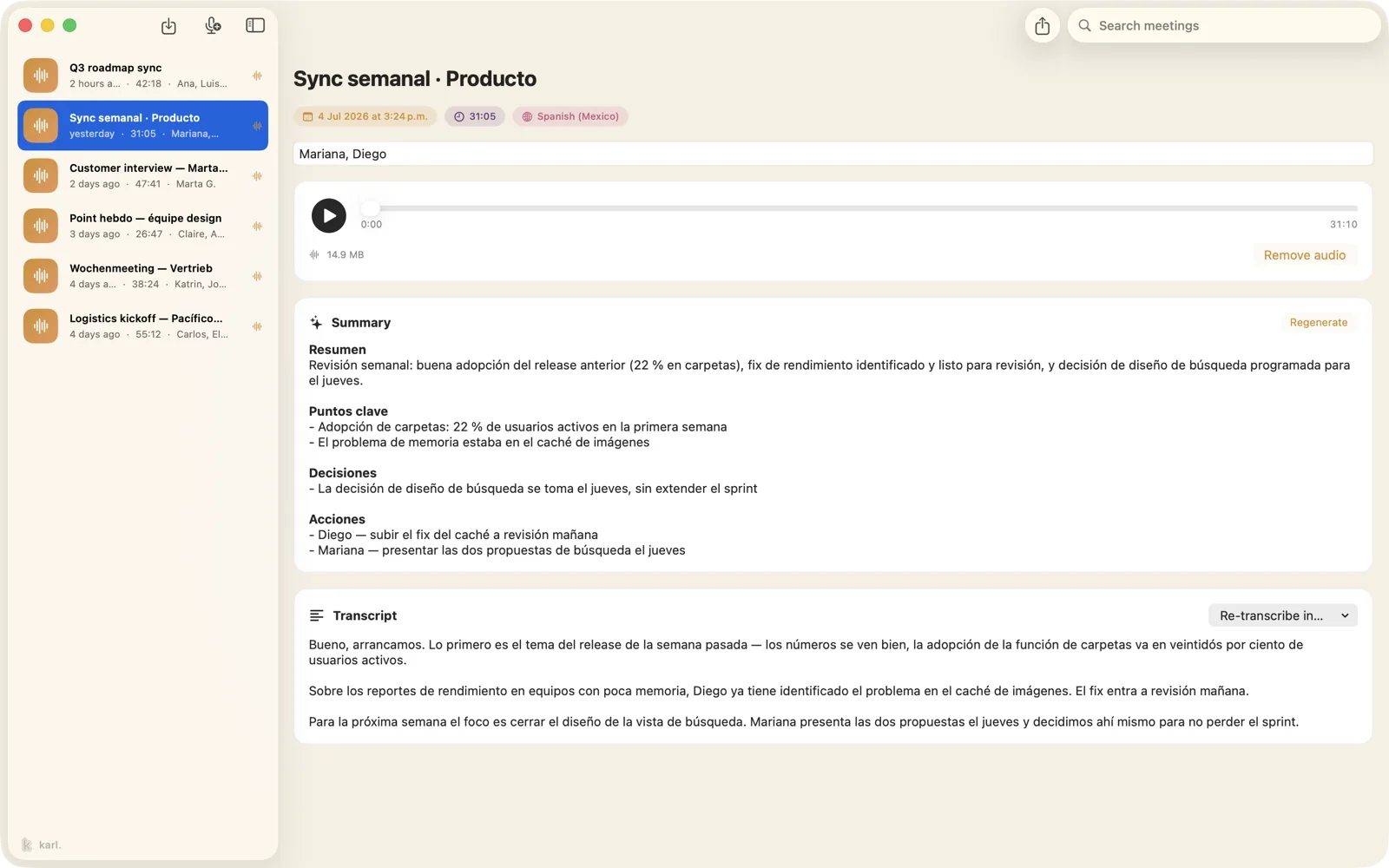
If you recorded inside Zoom, its local recording includes an audio-only file
(audio_only.m4a, in Documents › Zoom). Drop it into Karl and it transcribes on
your Mac. For a cloud recording, download the audio from Zoom's web portal first. There is no
import limit.
What Karl doesn't do
- Windows or Android. Karl runs on Mac and iPhone, and needs macOS 26 or iOS 26.
- Zoom calls on your iPhone. On iPhone, Karl records through the microphone, and iOS keeps the microphone with the app that is on the call. Use the Mac for Zoom, and the iPhone for meetings in the room.
- Join for you. No bot means no auto-join. If you're not in the call, nothing is recorded.
- Team workspaces, integrations or an API. Karl is made for one person.
- Summaries on a Mac without Apple Intelligence. Recording and transcription still work. The automatic summary needs it.
Questions
- Does Zoom know I'm recording?
- No. Zoom shows its recording notice only when you use Zoom's own recording. Karl asks macOS for the audio and never touches Zoom, so nothing appears in the call. That also means telling people is on you. In many places you must say you're recording, and in some you need consent. Say it at the start.
- Do I need to be the host?
- No. Zoom's host permission applies to Zoom's own recording. Karl records what your Mac plays and hears, which needs nothing from the host.
- Does it work with headphones or AirPods?
- Yes. Karl takes the audio before it reaches your headphones, so nothing has to come out of the speakers. If you switch to AirPods in the middle of a call, the recording follows.
- Do I need a virtual audio driver?
- No. Karl uses the audio tap built into macOS. There is nothing like BlackHole or Loopback to install and no audio routing to set up.
- Can I record a Zoom call on my iPhone this way?
- No. On iPhone, Karl records through the microphone, and iOS keeps the microphone with the app that is on the call. Use the Mac for Zoom. The iPhone is for meetings in the room, interviews and lectures.
- Is it free?
- Yes. Recording and transcription have no monthly limit and no time cap per call. Karl Pro is optional: $1.99 a month, $14.99 a year, or $24.99 once. It adds speaker names, sync to your iPhone through your own iCloud, folders, Ask Karl, and the notification that offers to record when a call starts.
Coming from another app? Karl side by side with Otter.ai and with Granola. Or read about Karl itself.